
What Is BeatsClips?
BeatsClips is a VN feature for creating rhythm-based VN templates. Instead of arranging every photo or video change manually on the main editing timeline, you use beat points to define when the media should change.
Each beat point becomes part of the template's timing and helps determine its replaceable footage slots. This makes BeatsClips useful for photo montages, fast-cut edits, transitions, and other music-focused videos that need media changes to follow a clear rhythm.
To begin, open the [Home] screen, tap the [+] button, and select [BeatsClips]. You can then choose one of the following creation methods.
Create with Music
Use [From Music] when you are starting with a music track and want the template to follow its rhythm. Select the part of the song you want to use, then let VN generate beat points automatically. You can change the beat density, adjust individual markers, and preview the timing before creating the VN template.
This method works well for photo montages, fast transitions, and other edits in which each photo or video change should align with the music.
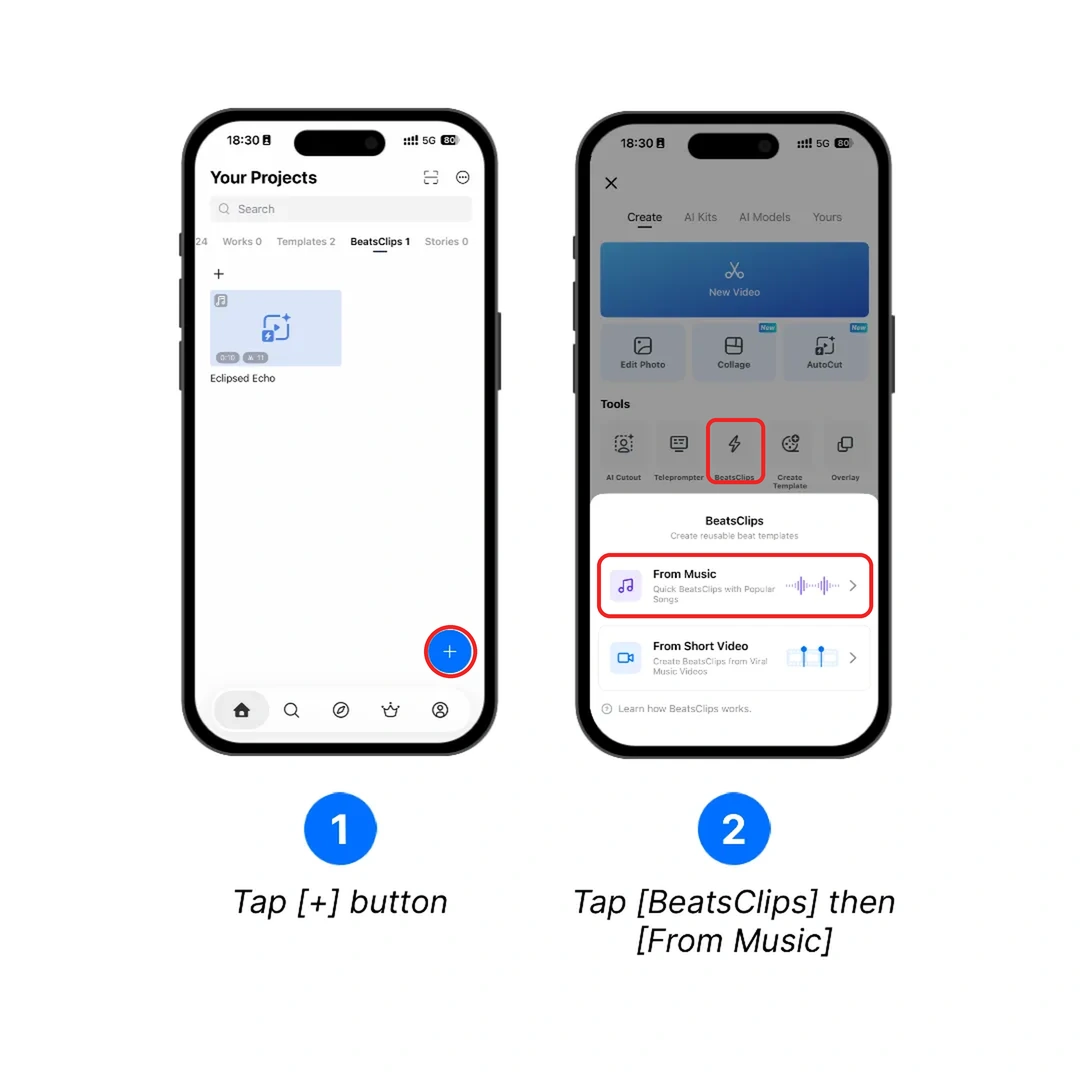
For the complete workflow, see Create VN Template with Music.
Create with a Viral Music Video
Use [From Short Video] when you have a viral music video, Reel, short video, or screen recording whose pacing you want to recreate. Select and trim the reference, then add beat points at its cuts, transitions, or rhythm changes.
This method lets you preserve the timing of the reference while creating a new VN template that users can fill with their own photos or videos.
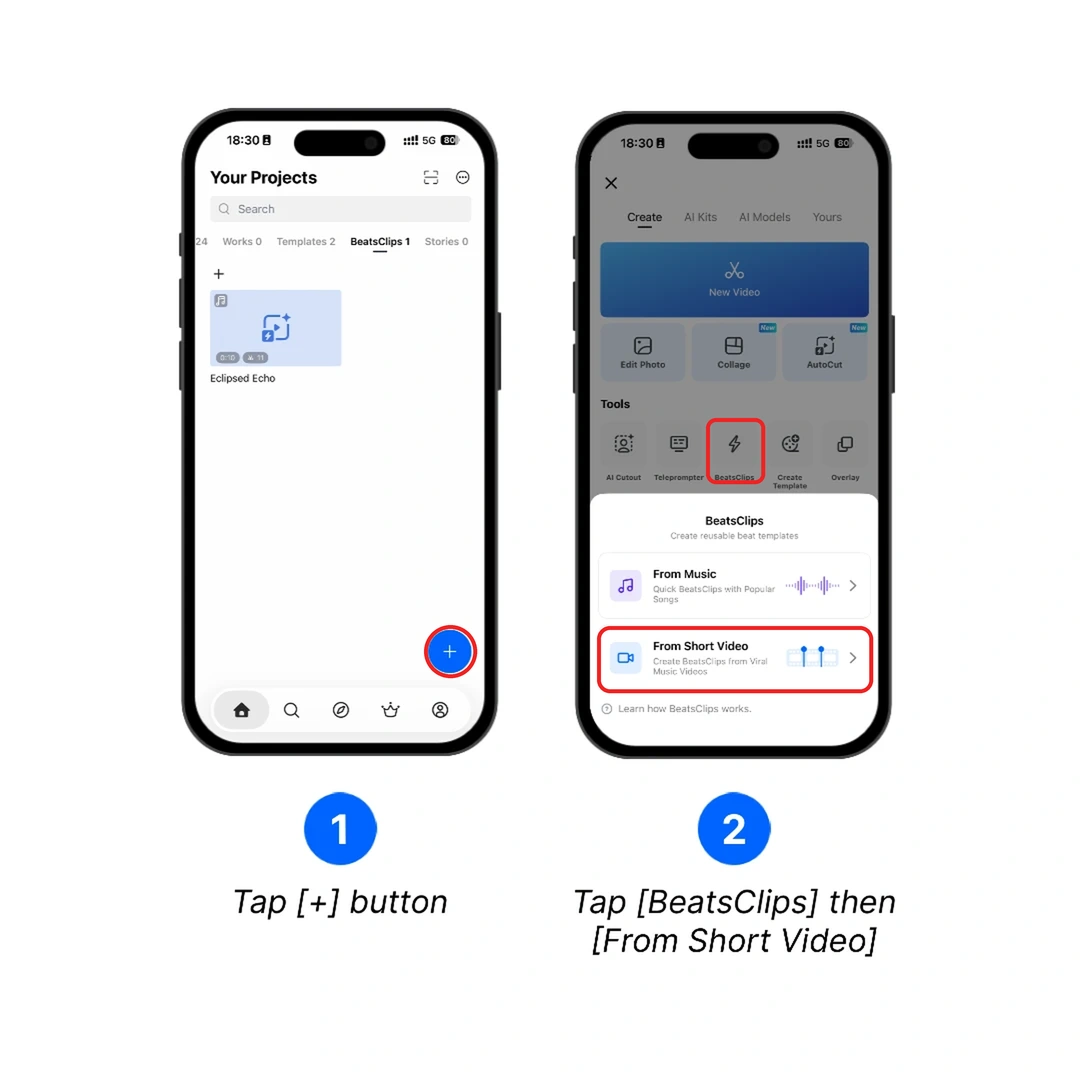
For the complete workflow, see Create VN Template with Viral Music Video.