
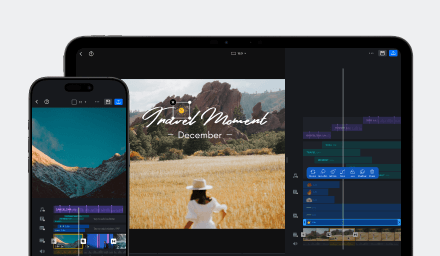






Edit Music
Zoom in the timeline for more precise editing.
Zoom out to preview the entire timeline.
Tap the handle to extend the duration to the beginning or end.
Recordings
Easily add or delete multiple recordings at any point on the timeline.
Adjust Audio Volume
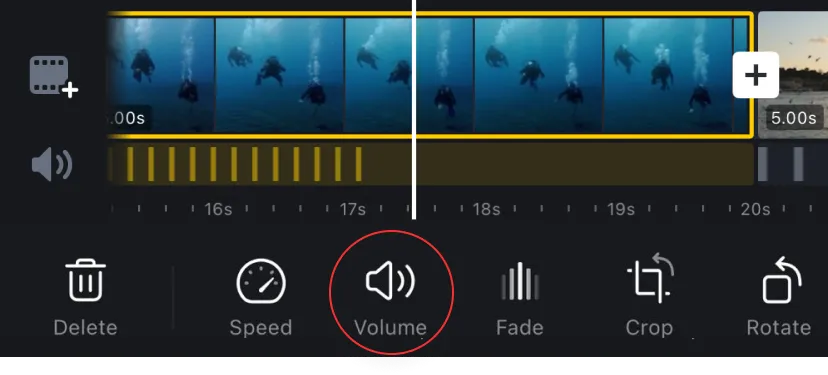
Tap the video clip on the main track to adjust the Video Volume and BGM Volume.
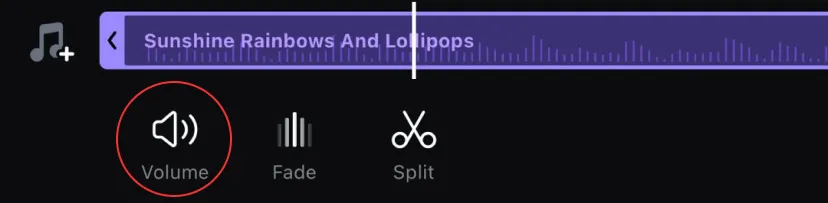
Tap the music clip to adjust the volume (music, sound effects, record).
Detach Audio from the Main Track
Tap [Extract Audio] to detach the main track's audio.
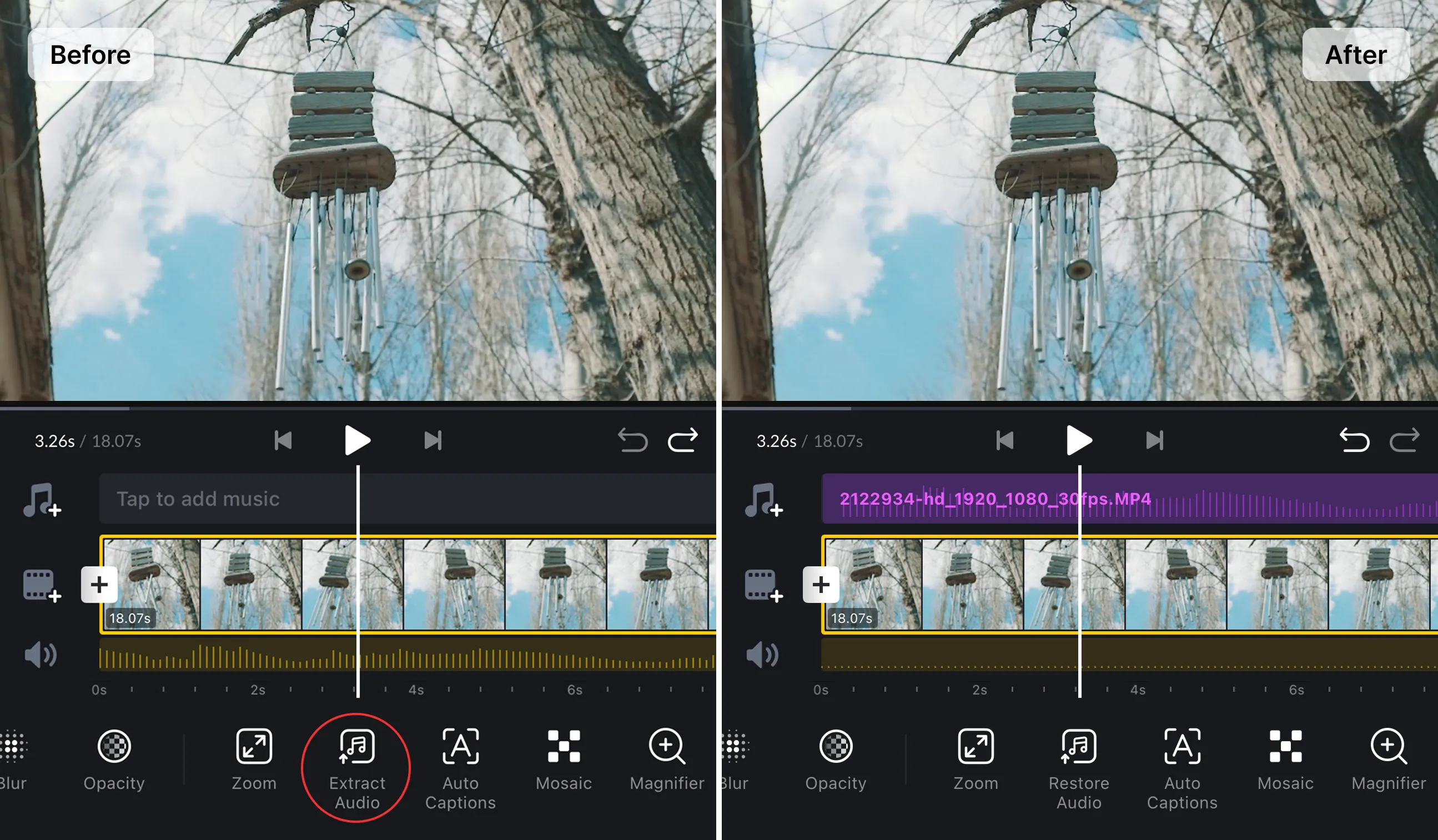
Extract audio
Extract audio from video
1. Open VN and click the [Create] button.
2. Select the [Library] tab and click [Music] to enter the music library.
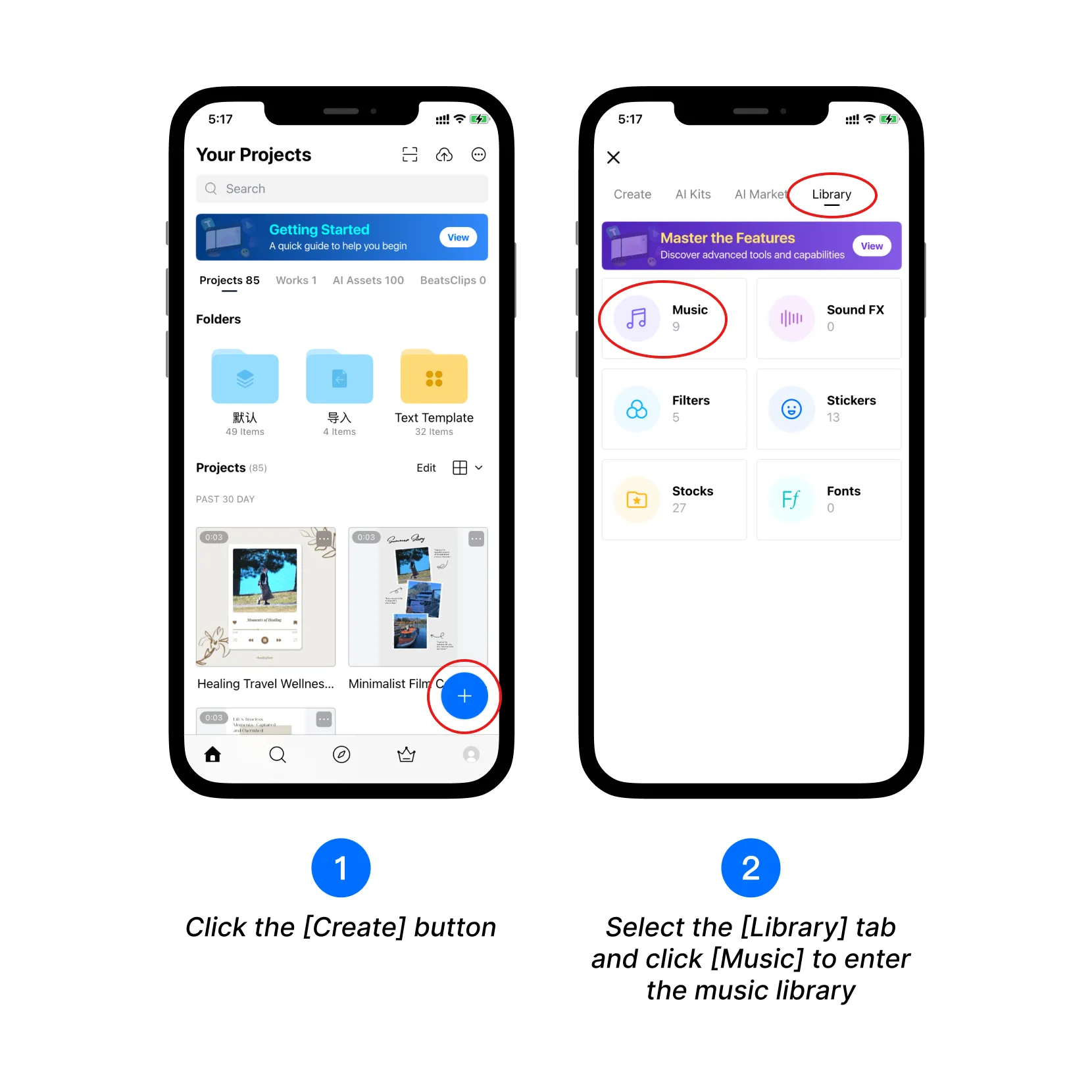
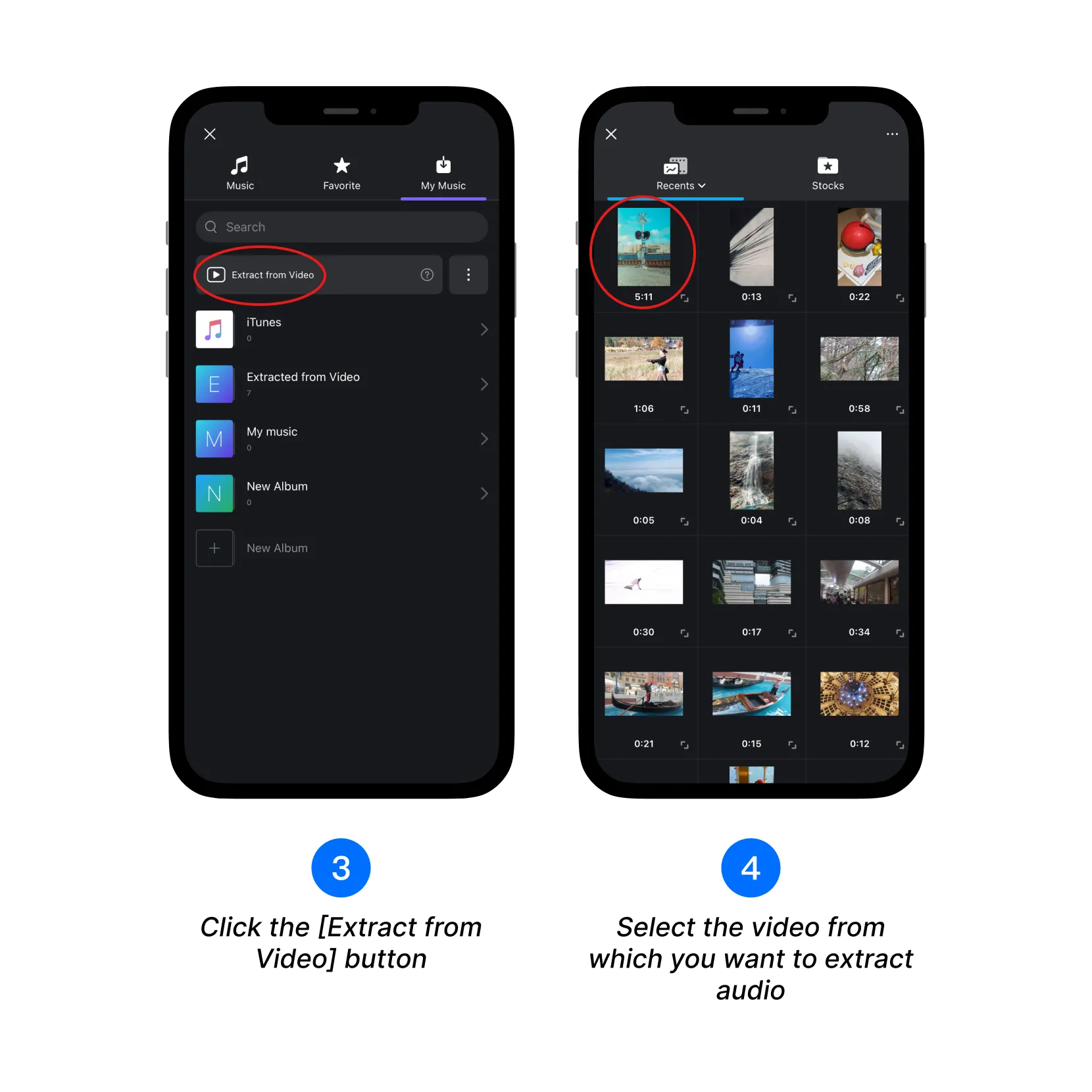
3. Click the [Extract from Video] button.
4. Select the video from which you want to extract audio.
The video can be obtained through the following methods:
- Record a video with audio
- Enable device sound and record the screen
- Download from a third-party source
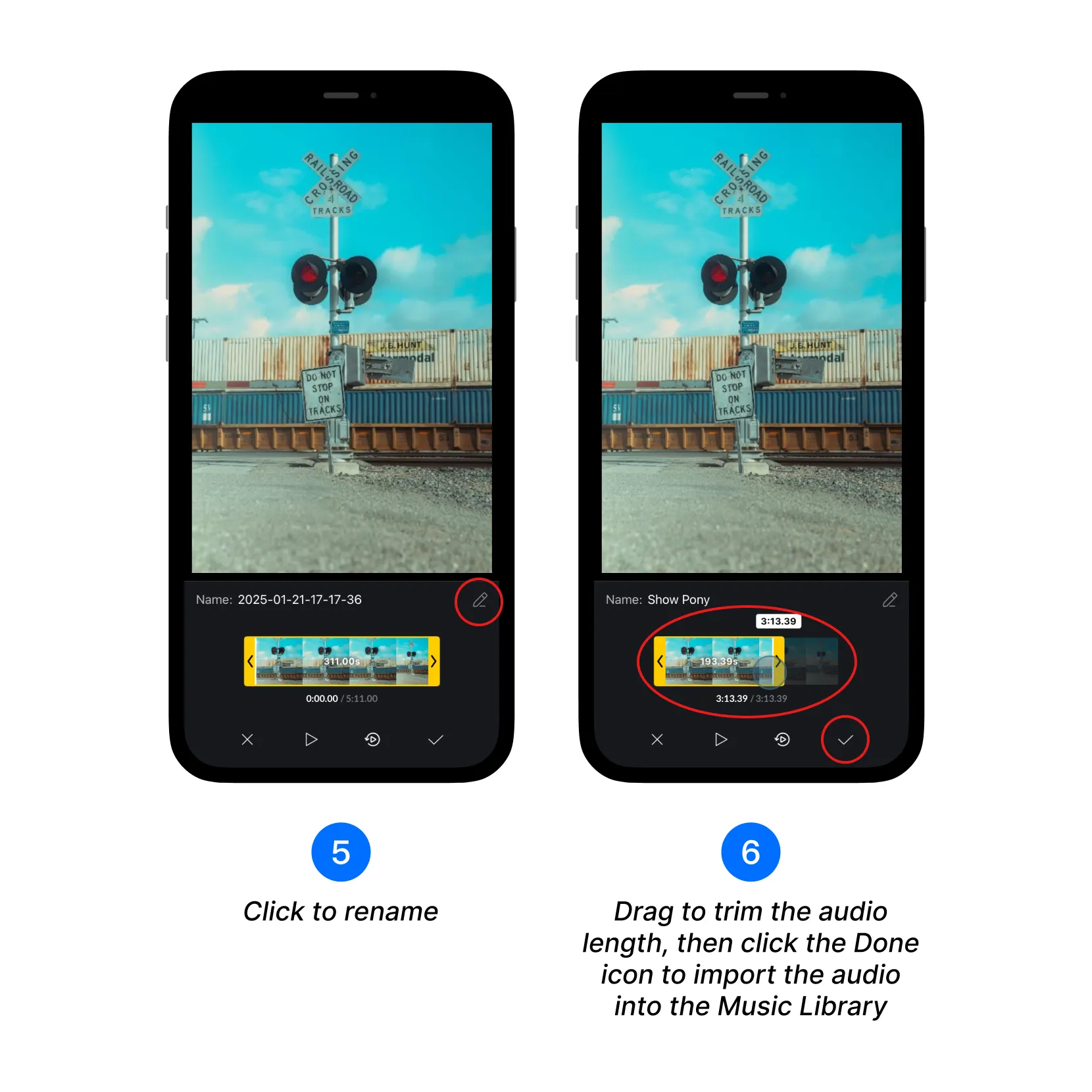
5. Modify the audio name.
6. Drag to trim the audio length, and once edited, click the Done icon to import it into the music library.
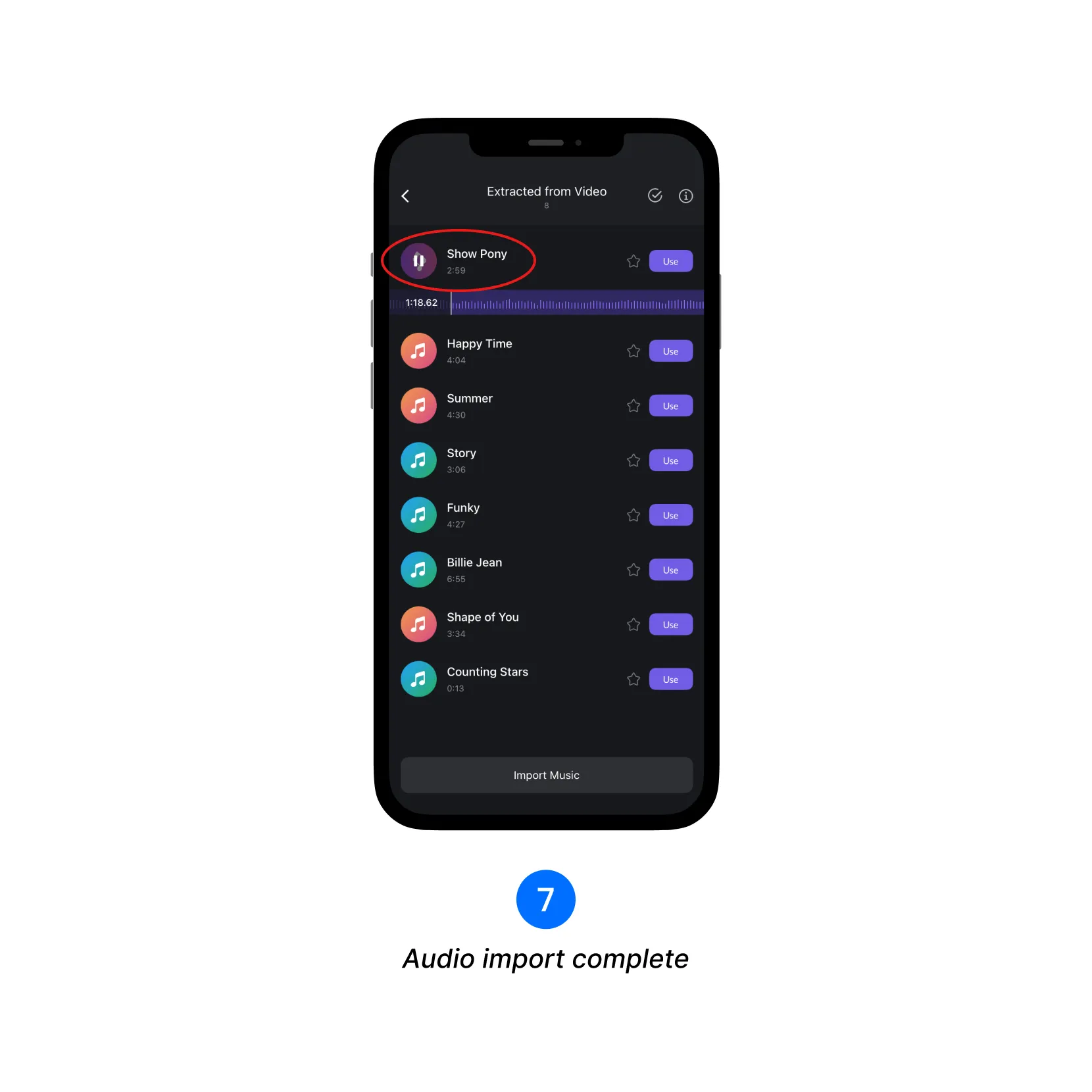
7. After the import is complete, the audio will appear in the [Extracted from Video] folder.
Import from file
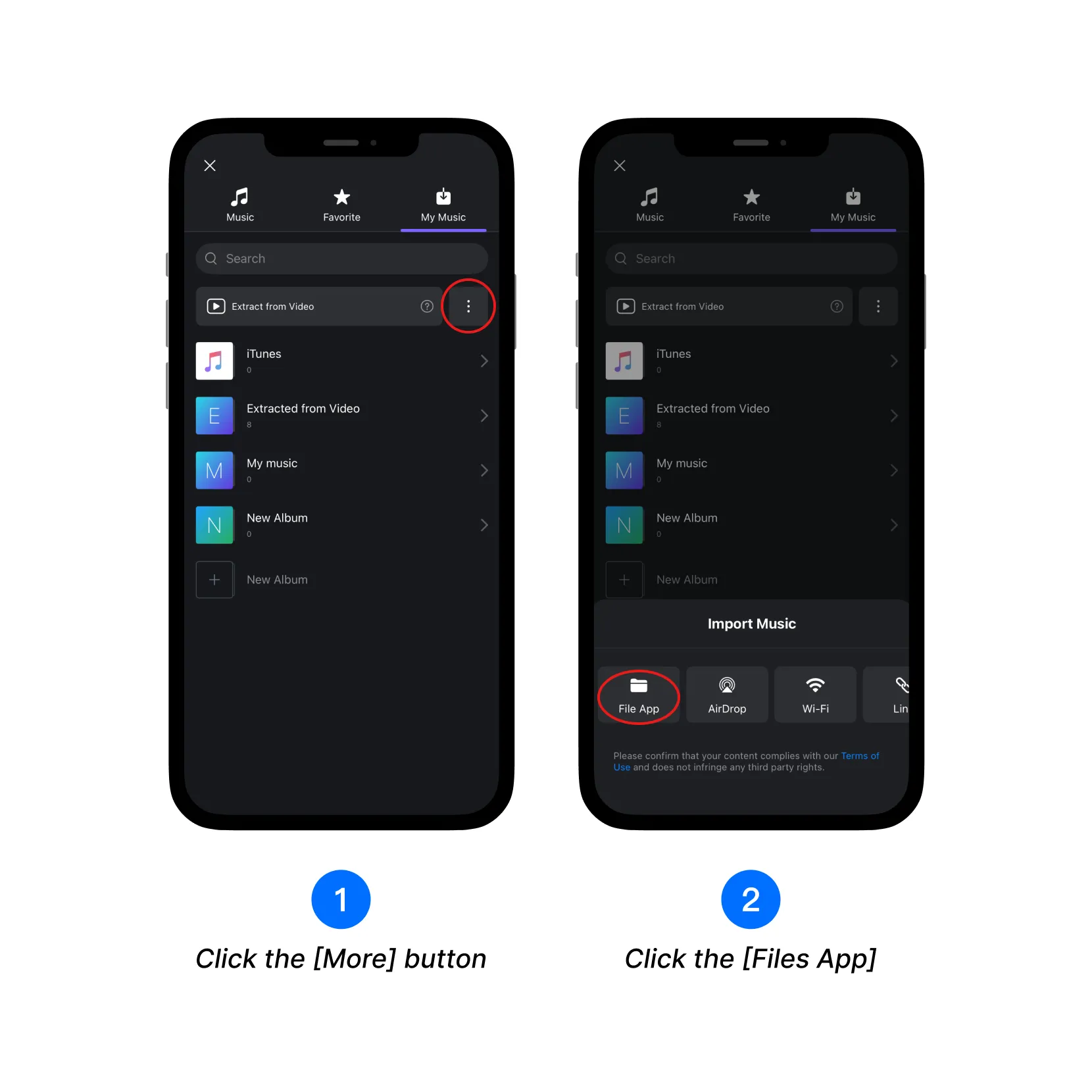
1. Click the [More] button.
2. Select [Files App] to import.
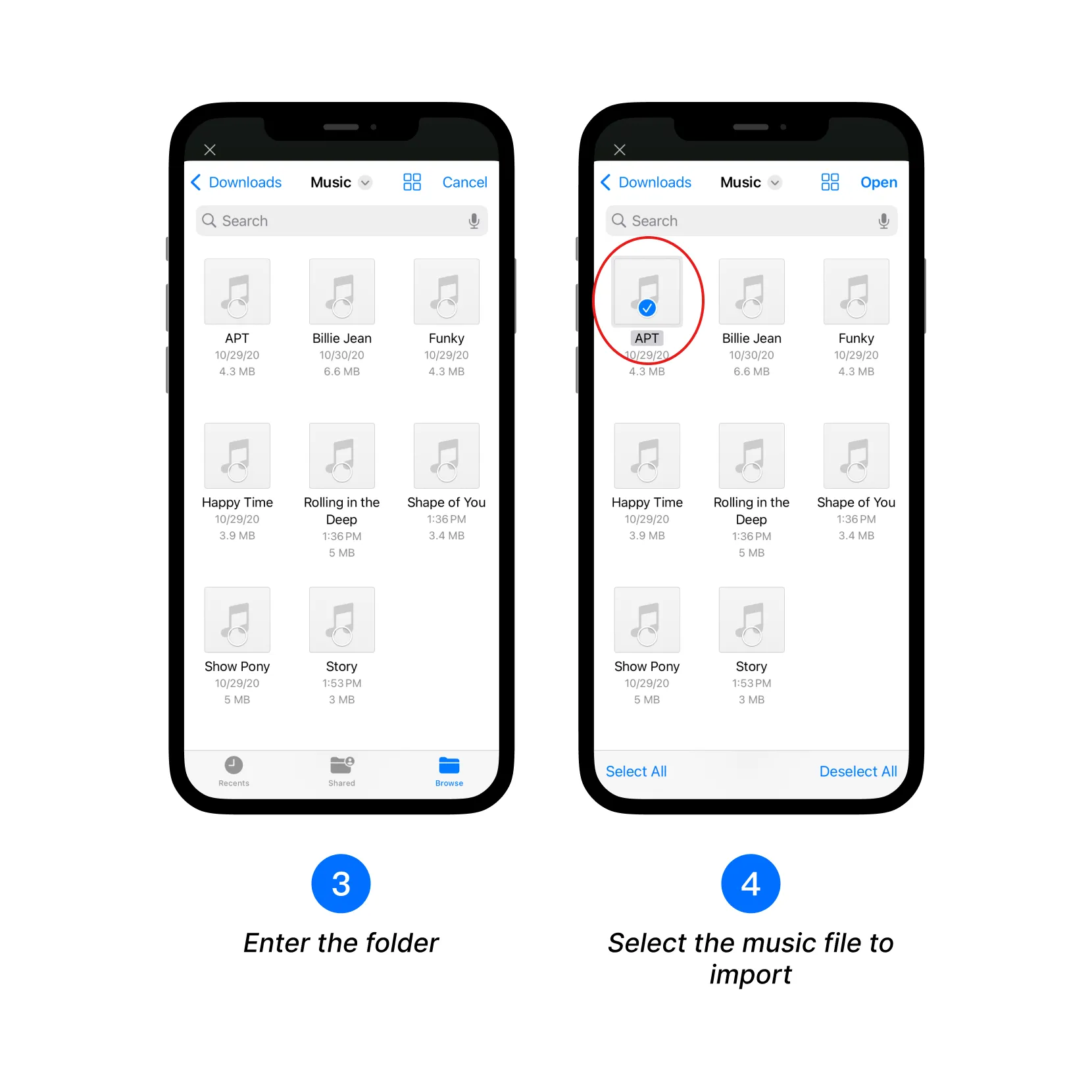
3. Enter the folder.
4. Select the file you want to import.
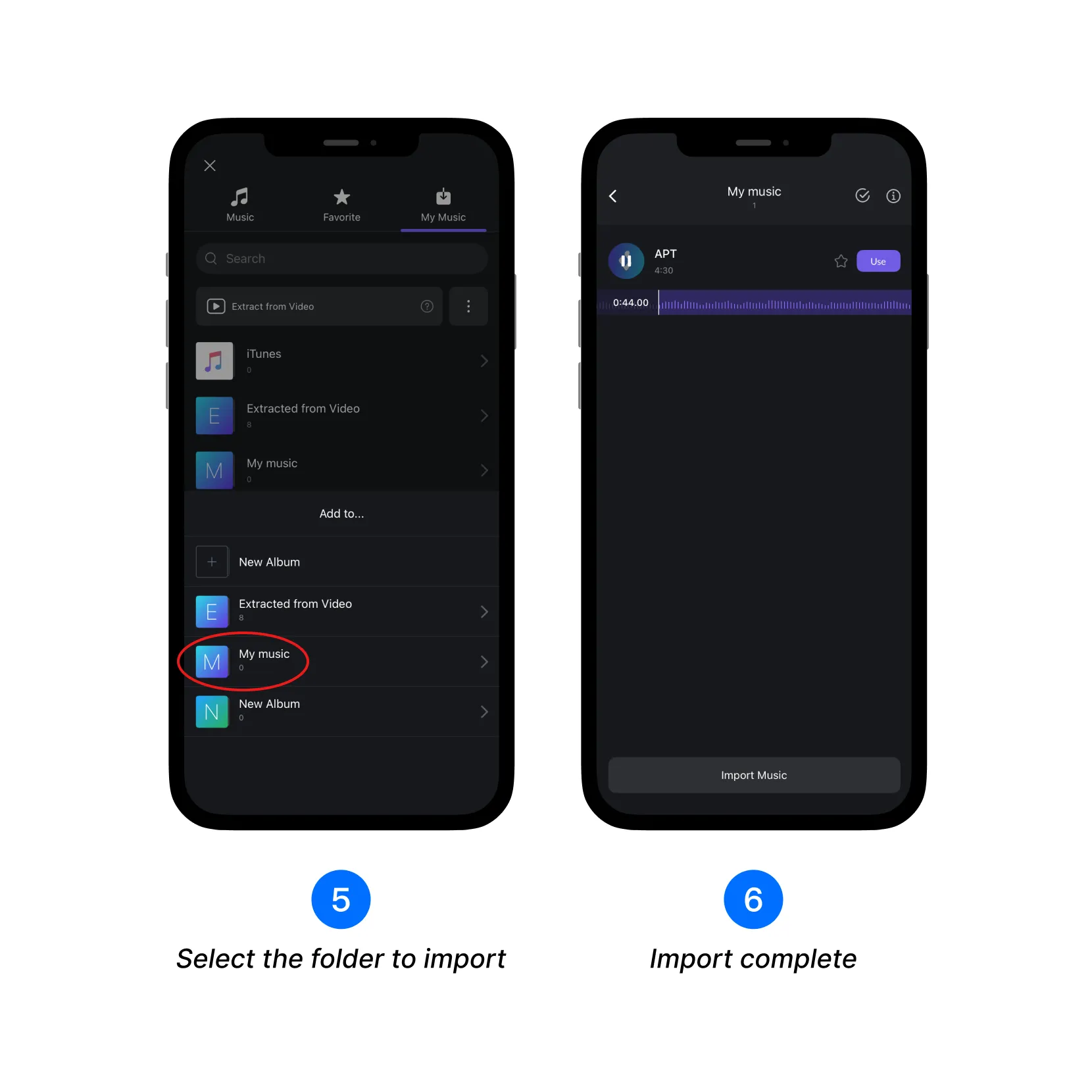
5. Select the folder to import.
6. Once imported, you can view the file in the corresponding folder.
Extract audio video tutorial
Add Music Beats (Manual & Auto)
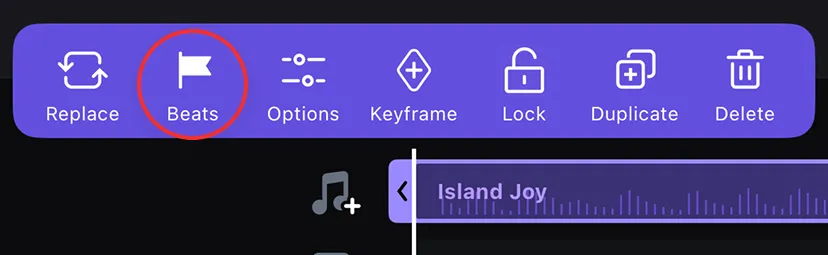
1. Tap the music track and select [Beats].
Manual Beats
1.1. Adjust the playback speed (0.5x or 1x) to tap beats in real time.
1.2. Or drag the timeline to manually place beat points.
1.3. Tap a beat point to adjust its timing by 0.05s, preview it, or delete it.
Auto Beats
2.1. Tap the [Auto Beats] to generate beat points automatically, and use the slider to adjust the beat frequency.
2.2. Tap a beat point to adjust or delete, same as manual.
2. Once your beats are set, tap the [Confirm] icon to apply them — your beat points will appear on the music track, ready for precise and rhythm-driven editing.
