




Social Media Creators
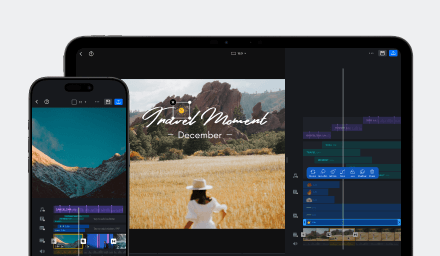
Create content quickly using Quick Mode, or switch to Pro Mode when you need more control over pacing, timing, and storytelling.
Choose how your timeline behaves. Stay with VN's familiar connected workflow, or switch to Pro Mode for precise timeline control.
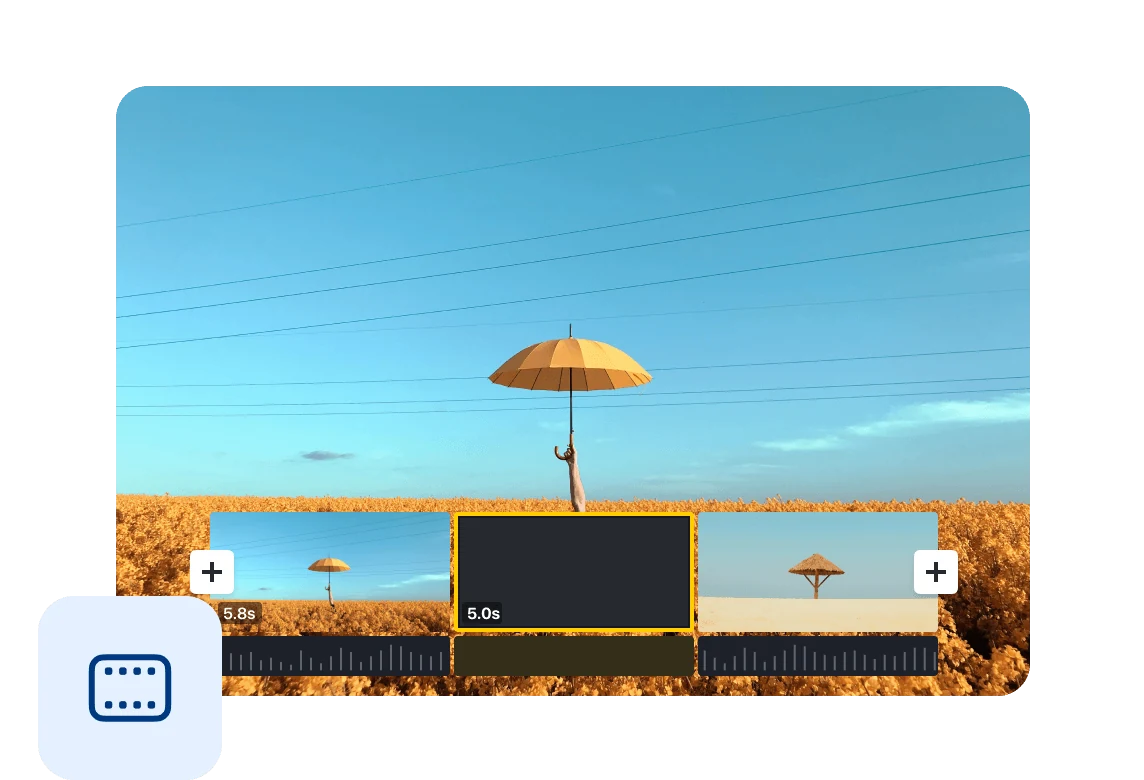
Quick Mode keeps clips connected automatically. Trim, delete, and rearrange clips without worrying about gaps. The timeline adjusts for you, making editing fast, simple, and familiar.
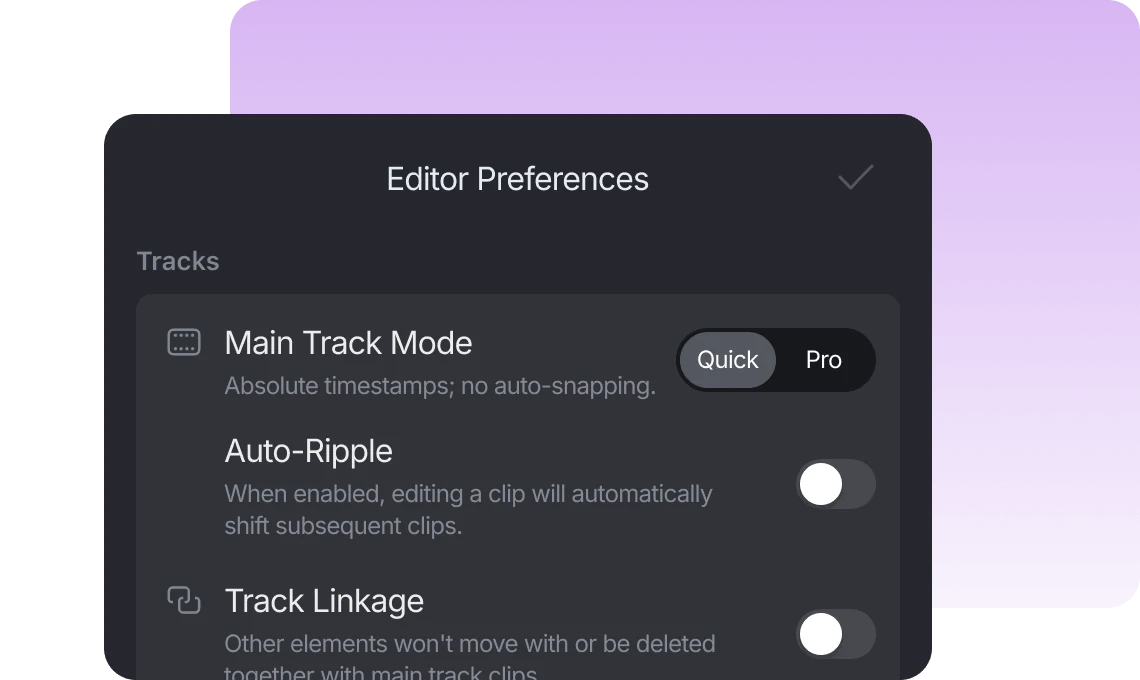
Pro Mode introduces absolute timeline editing. Clips stay at their exact timestamps, allowing you to preserve timing, work with gaps, and make precise adjustments without affecting the rest of your project.
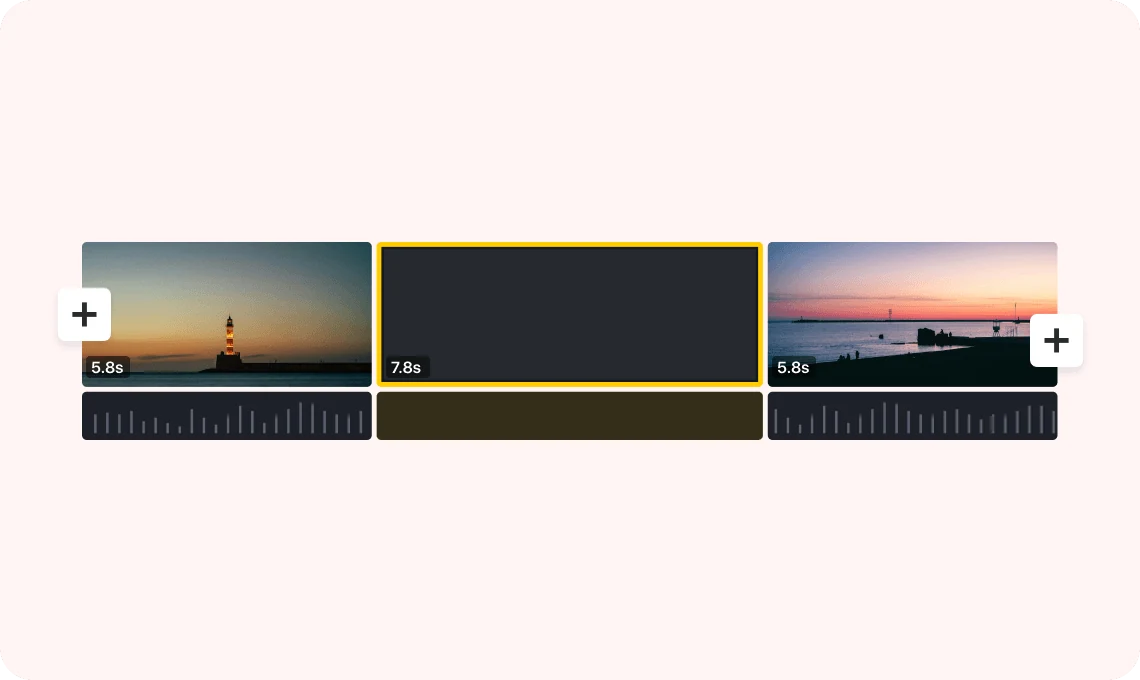
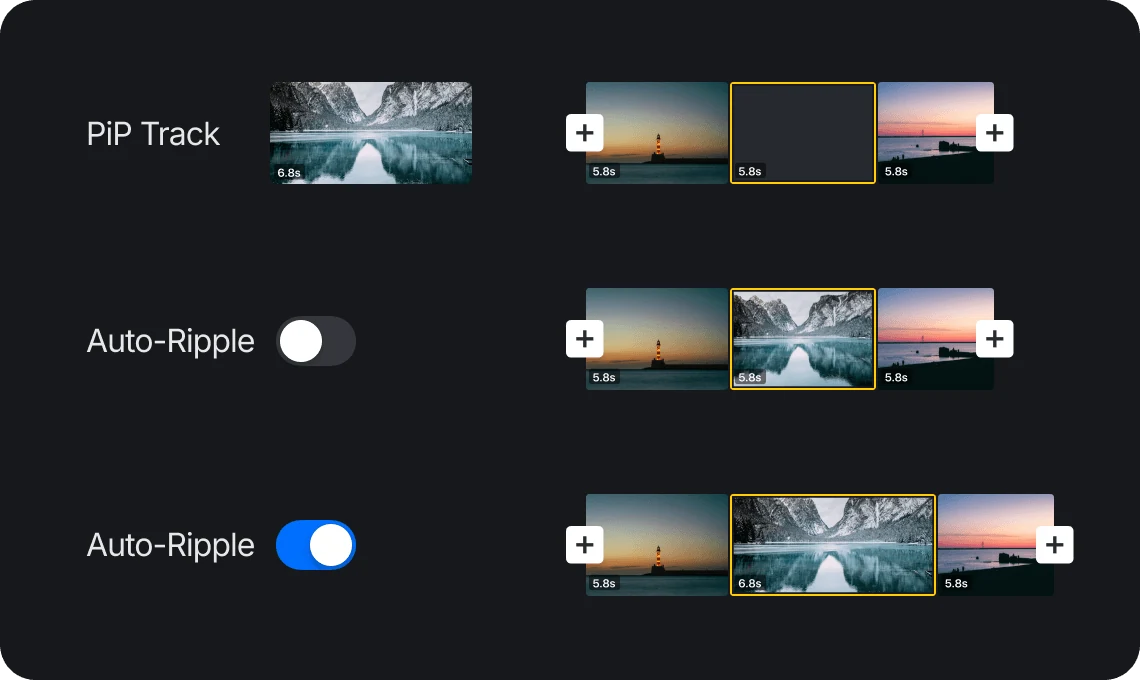
Available in Pro Mode. Enable Auto-Ripple to automatically shift subsequent clips and keep the timeline connected. Disable Auto-Ripple to preserve clip positions and work with gaps for maximum timing control.
Create content quickly using Quick Mode, or switch to Pro Mode when you need more control over pacing, timing, and storytelling.

Keep important moments synchronized while making precise timeline adjustments. Perfect for travel videos, tutorials, and long-form content.

Use Pro Mode for precise timeline control. Preserve clip positions and edit with greater flexibility.
Everything you need to know about VN's Main Track Mode feature.
Quick Mode keeps clips connected automatically, making editing fast and simple. Pro Mode introduces absolute timeline editing, allowing clips to stay at their exact timestamps and giving you greater control over timing and spacing.
Auto-Ripple determines whether timeline edits affect subsequent clips. When Auto-Ripple is enabled, extending, trimming, or removing clips automatically adjusts the position of subsequent clips. When Auto-Ripple is disabled, subsequent clips remain at their original timeline positions and gaps are preserved.
Quick Mode is ideal for everyday editing, social media content, and fast workflows. The timeline automatically stays connected, so you can focus on creating without managing gaps manually.
Pro Mode is designed for creators who need precise timing control. It allows you to preserve clip positions, work with gaps, and edit without affecting the rest of the timeline.
Yes. Pro Mode is available to all VN users and can be enabled from Editor Preferences.
Absolute timeline editing keeps clips at their original timeline positions during editing. Unlike traditional connected timelines, you can preserve timing, create gaps, and make precise adjustments without automatically moving other clips.
Enhance image resolution for sharper visuals.
Generate subtitles in multiple languages instantly.
Remove backgrounds automatically with AI.
Enhance, transform, or create images with AI.
Auto-sync cuts to music beats for perfect timing.
Turn black-and-white images into realistic color.


