


Speed Ramping (Curve)
1. Multiple preset curves are available for direct use.
2. Tap the [Add] or [Delete] to add or remove nodes on the curve.
3. Select speed nodes, drag vertically to adjust video speed, and drag horizontally to adjust speed duration.
Auto Captions
1. Tap the [Auto Captions] , then select the appropriate conversion model.
2. After the captions are generated, select the captions and Tap the [Edit] to enter the caption editing screen.
Video Cutout
1. Tap the video clip, then tap [Cutout].
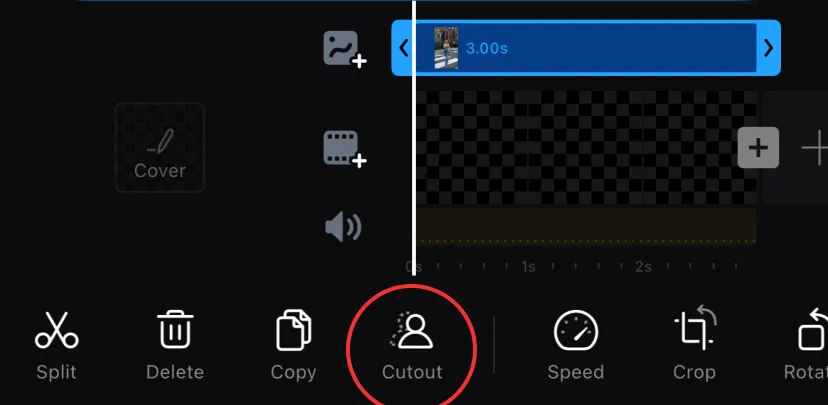
2. Tap [Cutout] to remove the background. Adjust Feather and Expand for better results.
3. Tap [Stroke] to add an outline.
Green Screen - Chroma
1. Tap the [Chroma] to enter color sampling and removal.
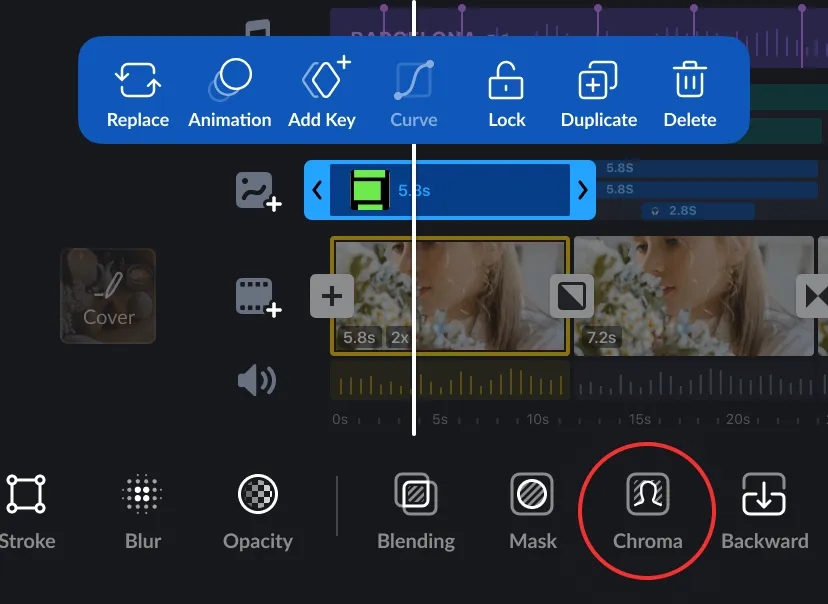
2. Use the color picker tool to select the color you want to remove, then adjust the [Intensity] and [Spill] to achieve a better effect.
Mask
1. Tap the [Mask] to add a shape mask to the material.
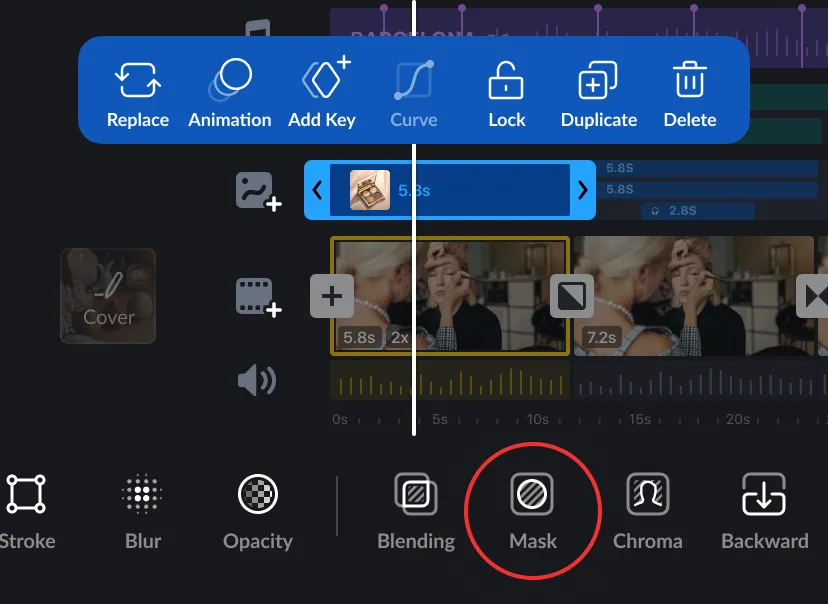
2. Select the desired mask style and adjust its size accordingly.
Keyframe - Audio
Control audio volume by adding keyframes.
1. Select your audio track and Tap the [keyframe] to adjust the volume.
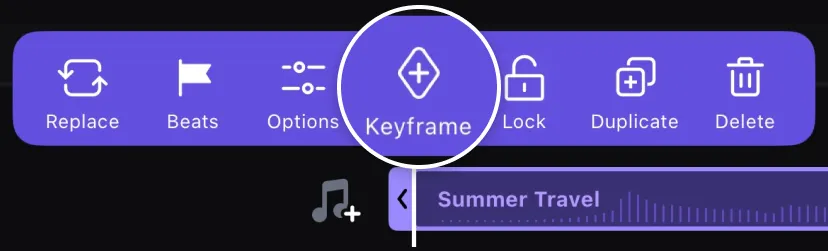
2. Add at least 2 audio keyframes to the audio track and adjust the volume at each keyframe.
Keyframe - Materials
Use keyframes to adjust the zoom, motion, rotation, and transparency of materials, including stickers, text, PiP, mosaic, and magnifier.
1. Select the clip, Tap on the [Keyframe].
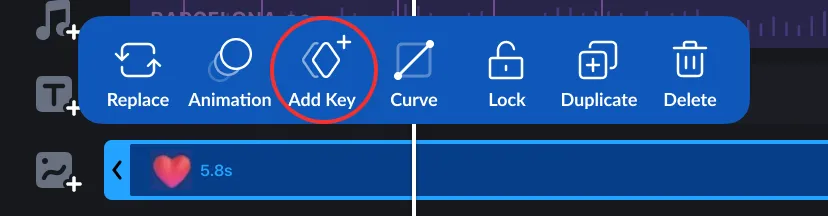
2. Add at least 2 keyframes and individually adjust the zoom, motion, rotation, or transparency effects.
Keyframe Ease
1. Select the clip, Tap on the keyframe, and then Tap on the [Curve].
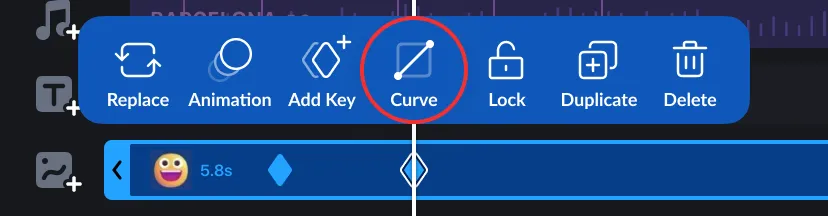
2. Apply easing effects between two keyframes to achieve smoother scaling, movement, rotation, and opacity changes.
Freeze
Tap [Freeze] to create a freeze-frame video.